
Key Points
- A black screen doesn’t always mean a dead phone. Charge it for a full hour first, since a fully drained battery can take a while to show signs of life.
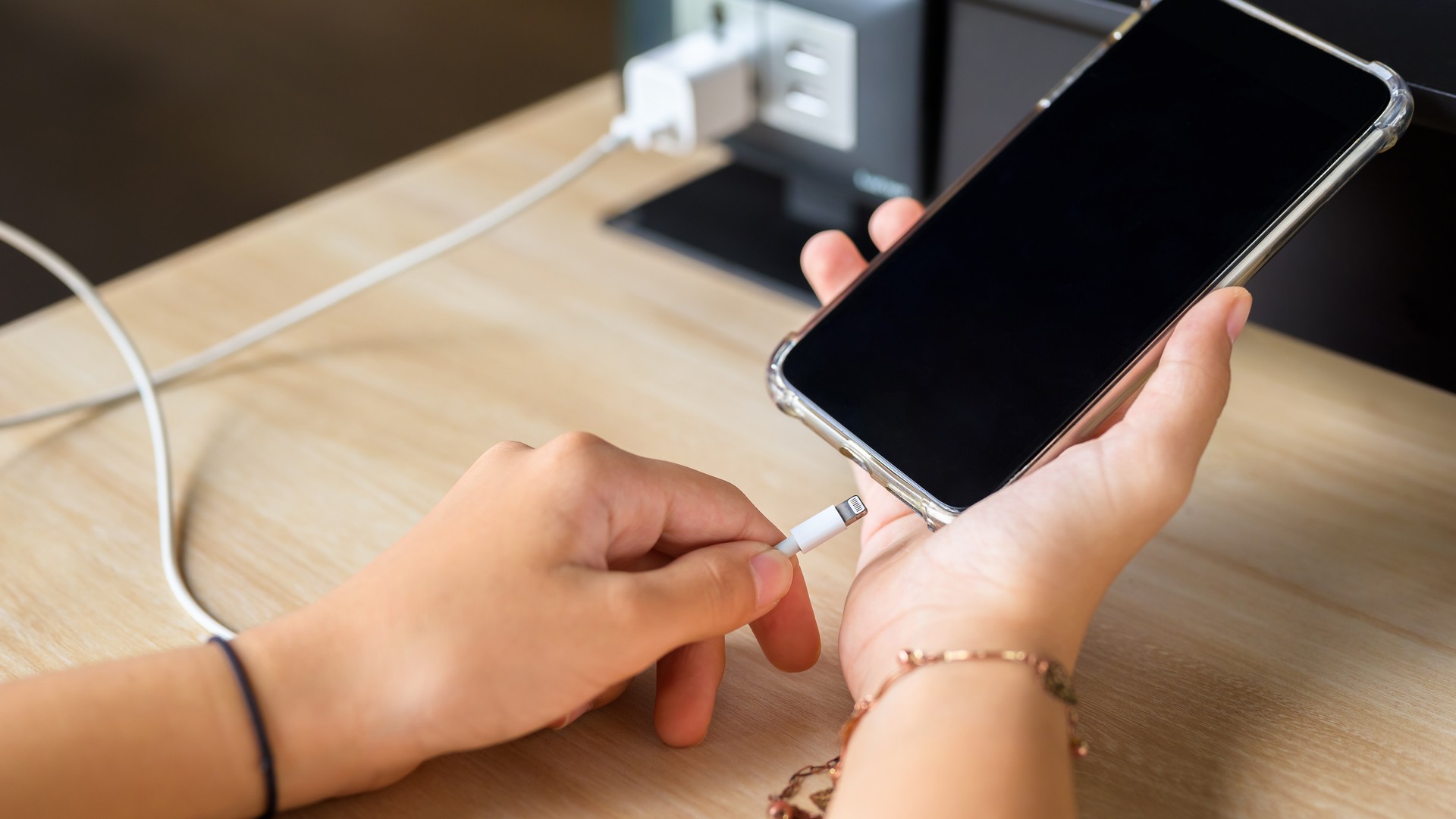
- Rule out the basics before suspecting hardware: check the outlet, try another cable and charger, and inspect the charging port.
- Force restart your iPhone, then call it from another device. If it rings or vibrates, the screen or its connection is likely the issue.
- A force restart won’t erase your photos, but choosing Restore will. Back up anything important before approving a repair.
Your iPhone may appear dead if you see a black screen. However, a black screen can be caused by several things.
Try these steps if you think your iPhone screen is broken or has no power. No disassembly is needed.
Check first for physical damage or moisture. Plug it into a working charger and allow it to charge for an hour. If there is still no sign of life, force restart your iPhone. If you hear noises coming from your phone, there may be something wrong with your screen.
Safety & Power
Make sure you take these steps if you feel your iPhone may be damaged in some way.
1. Check Your Phone Has No Damage Or Water
If your iPhone looks swollen or feels unusually hot, stop charging it immediately. Have a technician inspect suspected battery damage.
If your phone is wet, unplug your charger and let your phone air dry in a well ventilated area. Do not reconnect a cable until the connector and cable are dry. More information about charging your phone after water exposure can be found here: Apple's tips.
2. Charge Your Phone For An Hour
Use a cable that is not damaged and plug it directly into a wall outlet. Leave your phone for an hour and see if it turns on. If your phone has completely died, it may take longer than normal to show that it's charging.
If you see the low battery icon, keep charging. If it stays off, continue troubleshooting.
3. Make Sure Your Wall Outlet Is Working
Plug in something else, like a lamp, to your wall outlet. If it doesn't work, try a different wall outlet.
If the outlet works, move on to the next check.
4. Try Another Charger
Check your charging cable to see if it has any frayed wires, cracks, or bent plugs. Do not use your charger if you notice any of these things.
Use another cable you know works. If your iPhone charges with another charger, you may need to replace your cable and/or adapter.
Charging Your iPhone
Now that you know your wall outlet and charger aren’t the issue, the next checks separate an obstructed connector from other power faults.
5. Inspect Your Charging Port
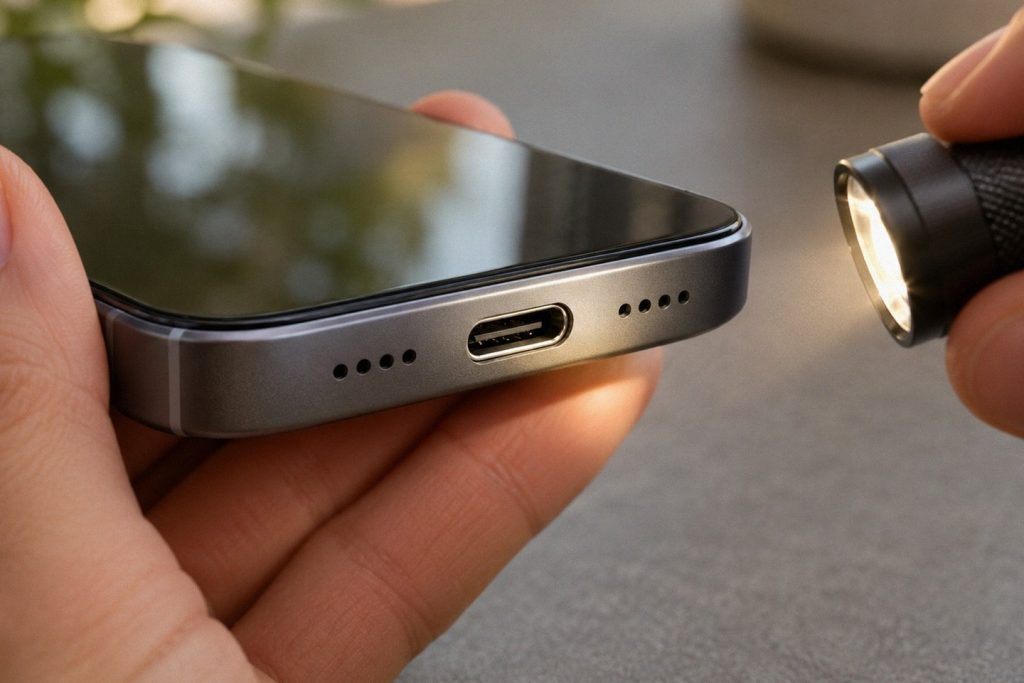
Hold your phone up to a light source and look at the charging port. Look for debris or damage. Do not use any sharp objects to remove lint, or take your phone apart.
If your charger does not fit securely, stop trying to force it in. Take your phone in for inspection.
6. Wireless Charging
If your iPhone supports wireless charging, set your phone on the charging surface. Make sure your phone and charger are not wet or damaged.
If your phone will charge wirelessly, but not with a cable, you may need to look into your charging cable or connection. Ask for a diagnosis and estimate before approving repair work.
In Calgary, Cell Medics can assess the charging connection and explain the repair options before you approve any work.
7. Let Your Phone Reach Room Temperature
Bring a very cold phone indoors, or move a hot phone out of the sun. Do not put your phone in the fridge, or expose it to heat.
Extreme temperatures can interrupt charging or darken the display. Stop testing if the phone remains hot or appears damaged.
Troubleshooting Software & Screen
After ruling out any charging issues, try to determine whether your software or screen is causing the problem.
8. Force Restart Your iPhone
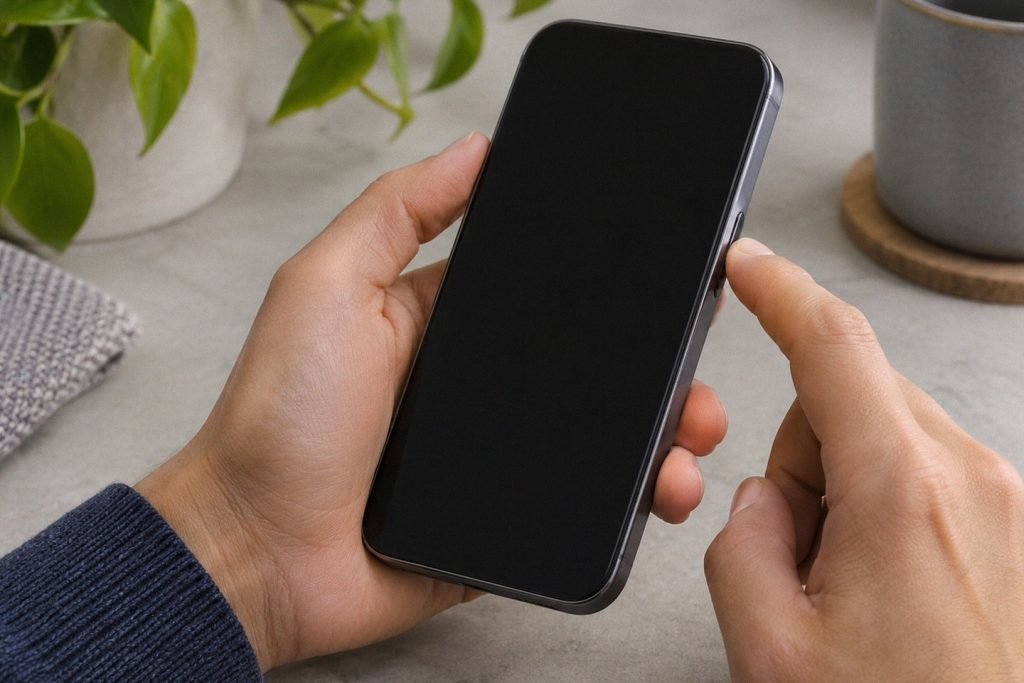
For iPhone 8 and newer, quickly press and release Volume Up, then quickly press and release Volume Down. Hold the side button until the Apple logo appears. This can take more than 10 seconds, so be patient.
On the iPhone Duo, quickly press and release the volume button nearest the side button, then quickly press and release the other volume button. Hold the side button until the Apple logo appears.
If you have an iPhone 7, hold your power button and Volume Down at the same time. If you have an iPhone 6s, first-generation SE, or older, hold your home button and power button until the Apple logo appears. You can find more information here: Apple's instructions.
9. Does Your Phone Pick Up Calls?
Try calling your phone from another device. If you hear your phone ringing, or feel it vibrate, you know that your phone is on, but the screen is not displaying anything. Keep in mind that your phone could be muted, so this isn't a guaranteed fix.
If your phone rings, the screen may have a display fault. If your phone doesn't, you may need to look at your battery, software, or internal hardware.
10. Check If Your Computer Recognizes Your Phone
If your phone is dry, connect it to a Mac and check Finder, or to a Windows PC and check the Apple Devices app. If your computer recognizes your phone, it could be on, but you can't see it.
If your computer does not recognize your phone, the result is inconclusive. You may need to unlock the iPhone and approve a Trust prompt. If your phone is stuck on the Apple logo, or a recovery screen, you may want to try to recover your software. Know that if you choose Restore, your phone will be wiped: Apple explains.
What Do These Tests Tell You?
These results can help narrow down the problem:
- If your phone charged after an hour, you may have just had a dead battery.
- If your phone charged wirelessly, but not with a cable, look into your charging cable and charging port.
- If your phone rings, but the screen is black, your screen or its connection may need inspection.
- If your phone is stuck on the Apple logo, it could be software, or hardware related.
- If none of these steps worked, your phone may need its battery or internal hardware tested.
Get It Fixed
If the phone remains unresponsive or the display stays black, take your phone for an assessment. After a hard drop, suspected battery damage or water exposure, arrange an inspection.
Ask what the technician will test. Mention unbacked-up photos and agree on any Restore action beforehand.
FAQs
Why Is My iPhone Black Even When It Has Battery?
Your software could be stuck, or your screen could be faulty. Try to force restart your phone, and see if it will pick up a call or vibrate.
Can You Turn On An iPhone That Is Dead?
Yes, sometimes if your phone is dead, it will take longer to show you that it is charging. If it stays off after an hour, more checks may be needed.
Will Force Restarting My iPhone Delete My Pictures?
A force restart will not erase your photos. Restore will erase device data, so check the option before continuing.
If your iPhone still won't turn on after charging and a force restart, it's time for a professional assessment. A technician can check the battery, charging connection and display before recommending repairs. Mention any drops or water exposure, and flag photos or files that aren't backed up before approving work.