
Key Points
- Test one thing at a time: the wall outlet, then the cable, then the power adapter, so you can rule out your accessories before blaming the phone.
- If your iPhone charges wirelessly but not with a cable, the problem is likely the charging port or cable.
- Check Battery Health in Settings. A service warning or low maximum capacity points to the battery, while a phone stopping near 80% may just be Optimized Battery Charging.
- If the phone is swollen, very hot, or has a liquid detected message, stop charging it and get professional help.
Your phone charged fine yesterday. But today you notice the battery life is not increasing, or there's no sign of charging when plugged in. There could be many reasons why your phone is not charging. Before you jump to the conclusion that your battery is dead, follow these simple steps to find out what may need repair.
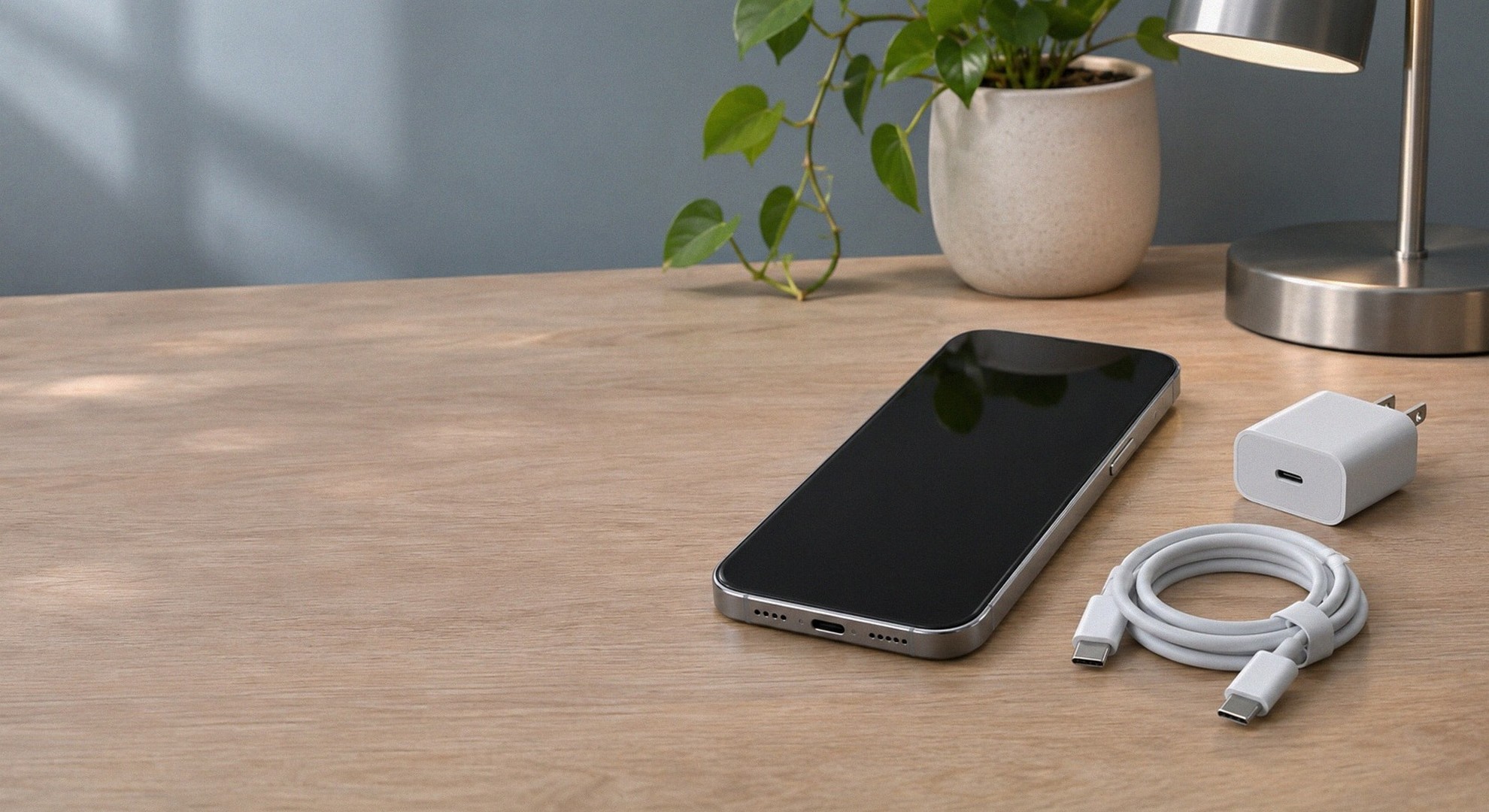
Test your charger, cables and your iPhone. Start by making sure your wall outlet, cable and charger all work together and rule out your phone last. If your iPhone isn't charging, here are some tips to troubleshoot why.
How to tell if your iPhone charger, port or battery is the problem
Troubleshooting your iPhone will allow you to identify whether it's your charger, charging cable, charging port or battery. Make sure your phone is dry and that you're not using a damaged charger, cable, or power adapter.
1. Confirm the outlet works and give it time
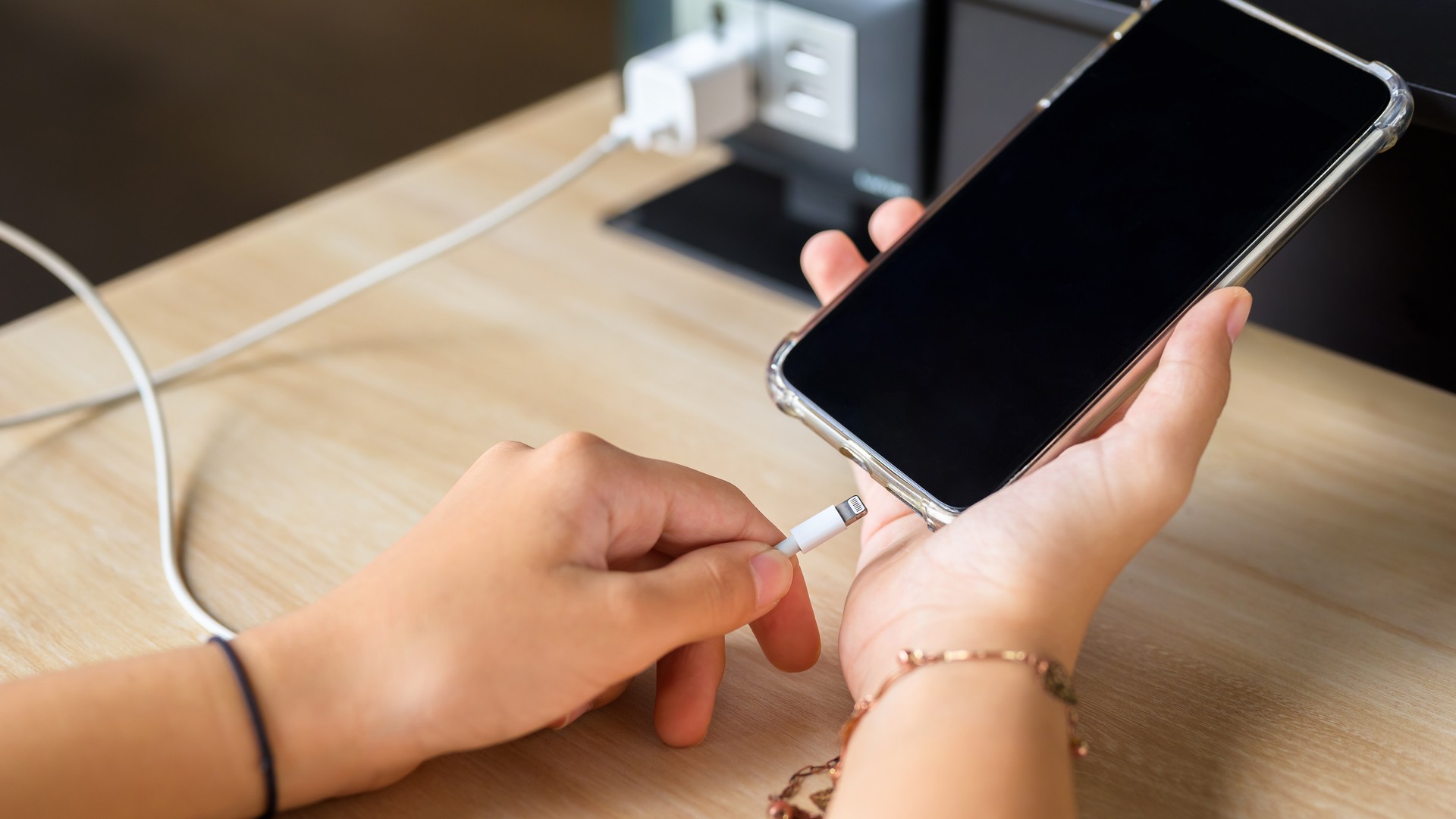
Plug your iPhone directly into a wall socket using a power adapter and charging cable that you know charges your iPhone. Make sure to avoid power strips and adapters that hold multiple ports. Allow your iPhone to remain plugged in for at least 30 minutes if the battery has died.
You may notice that your iPhone displays the charging icon and boots up, meaning your phone had run out of battery. If there is no change, continue using the same outlet for the next step.
2. Change your charging cable
Using the same outlet and power adapter, replace your original cable with another cable you know works, and leave it plugged in for a few minutes.
If your phone begins to charge, you may want to look at your old charging cable for any signs of damage. If your phone still doesn't charge, move on to the next step.
3. Try another power adapter
Using the second cable, try plugging in your iPhone to another outlet using a different power adapter. Leave it plugged in for a few minutes to see if your phone starts charging.
If your iPhone charges, it could mean your previous charger was broken. If not, move on to testing your iPhone's charging port.
4. Inspect your charging port
Remove your charging cable and look at your iPhone's charging port. Is there any debris in the port? Does the charging cable fit properly? You should not poke anything into your charging port if it doesn't seem to accept your charging cable properly.
If your phone will not charge with multiple cables, you may want to have a professional take a look at your iPhone's charging port.
5. Make sure your screen isn’t frozen
Try restarting your iPhone. If it isn't responding to your touch, force restart your iPhone by pressing and releasing the volume up button, then volume down, then holding the side button until the Apple logo appears. Once your phone restarts, leave it plugged into your charger for at least 30 minutes.
6. Charge your iPhone wirelessly
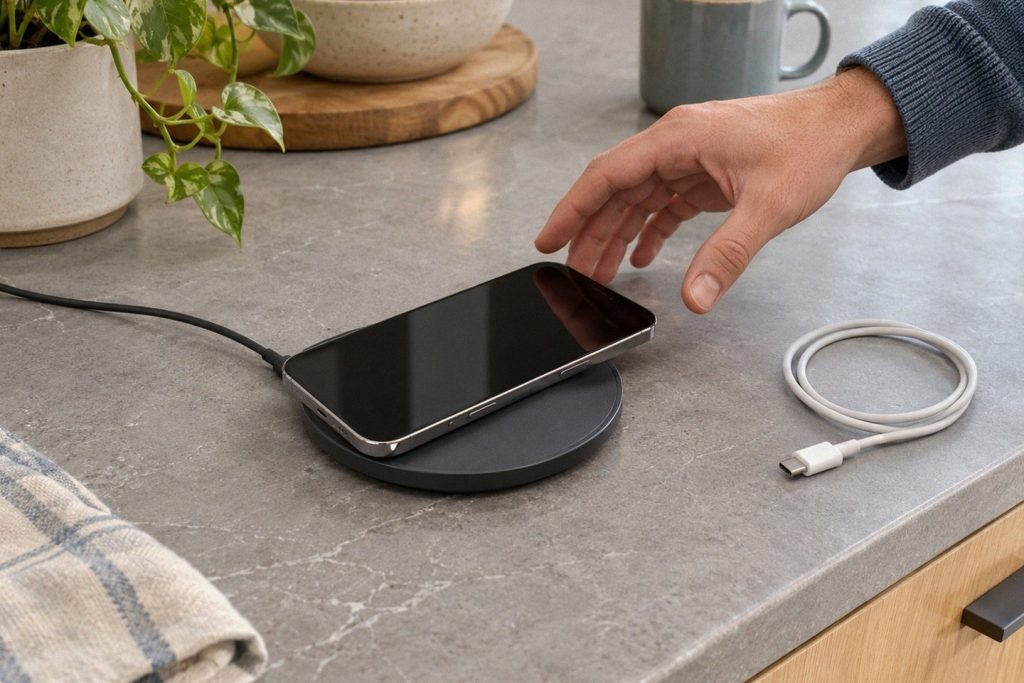
If your iPhone supports wireless charging, remove your charging cable and place your iPhone face up on a wireless charger with power. Remove your phone case if it's thick and preventing it from charging properly.
Once you've placed your iPhone on the wireless charger, make sure you see the charging symbol. If your iPhone charges wirelessly, but not through your cable, there could be an issue with your iPhone's charging port or charging cable.
If none of these steps allow your iPhone to charge, there may be an issue with your battery.
Some things to look for
There are certain symptoms that can point to your charger, charging port or battery being the problem.
If your iPhone is charging but the percentage is going up very slowly, try your iPhone with a working wall charger.
| Observed result | Likely area to check |
|---|---|
| Only the replacement cable works | Original cable or connector |
| Changing the adapter fixes charging | Original adapter or power connection |
| Wireless works; multiple cables fail | Wired port or charging path |
| Wired charging works; wireless does not | Wireless pad power, alignment, case or charging hardware |
| Both methods fail with known-good power | Battery or internal hardware |
If your iPhone only charges when you wiggle the charging cable, you'll want to have your iPhone inspected. Cell Medics offers consultations and inspections to identify what is preventing your iPhone from charging.

Check whether the battery is the problem
Battery wear is more likely when charging problems come with short runtime, unexpected shutdowns or a service warning. A battery that drains quickly is not necessarily the reason a phone fails to recognize a charger.
Open Settings > Battery. On iPhone 15 or later, select Battery Health. On iPhone 14 or earlier, choose Battery Health & Charging, following Apple's battery-health instructions. Note any service recommendation and the maximum-capacity reading.
A phone stopping near 80% may be using Optimized Battery Charging or pausing because of heat. iPhone 15 and later also offer a charge limit. Check Battery settings and let a hot or cold device return to normal indoor temperature before retesting.
Save the wording of any battery-service warning. It can help a technician understand an intermittent fault, even if the message later disappears.
Liquid or Damaged iPhone not charging
If your iPhone shows a liquid detected message, you should unplug your phone and wait until the charging port has dried out. Apple suggests not charging your phone until the port is dry, do not apply heat, blow on the phone, or place anything into the charging port to dry it out.
If your phone is swelling, damaged, smells odd, or is excessively hot, stop using it and seek professional help. Do not attempt to open your phone or remove the battery, this should be done by a professional.
Still Having Trouble Charging Your iPhone?
If your iPhone still won't charge after testing a working cable, adapter and wireless charger, a professional inspection can help narrow down the cause. Charging port, battery and internal hardware problems can show similar symptoms.
Cell Medics in Calgary can assess the issue and discuss your repair options. Bring the accessories you've tested and mention any drops, liquid exposure or charging alerts. This information helps the technician identify the problem before recommending a repair.
FAQs
Why does my iPhone show that it's charging when it’s not?
There may be many reasons why your iPhone is displaying that it's charging, but not actually charging. Try following the steps above to troubleshoot your issue, if that doesn't fix it, leave your phone plugged in for at least 30 minutes and see if your battery goes up.
Does wireless charging prove the charging port is broken?
If your phone will charge wirelessly, but not through your charging port, you may want to have your charging port inspected. It could be clogged, or there may be another issue preventing your phone from charging properly.
Will replacing my battery fix my iPhone not charging?
Replacing your battery could solve your issue, but make sure to test your cables, chargers, and look at your Battery Health in Settings before deciding that your battery needs to be replaced.